Import and formats · glTF 2.0
Import a glTF file with its BIN files and textures
To import a .gltf file into DevXR Studio, select the glTF 2.0 document and the BIN files and images it references. Preserve their relative paths in the selected folder. DevXR prepares a validated GLB and a new private model for you to review before publishing.
What is the difference between glTF, BIN and GLB?
glTF 2.0 describes a 3D scene. A .gltf file is a JSON document that can reference separate binary buffers and textures. A GLB packages data in a binary container; a self-contained GLB remains a convenient choice for a simple transfer.
If your artist or tool provides a glTF folder, keep the required files together. The .gltf file can be small while its BIN files and images account for most of the size.
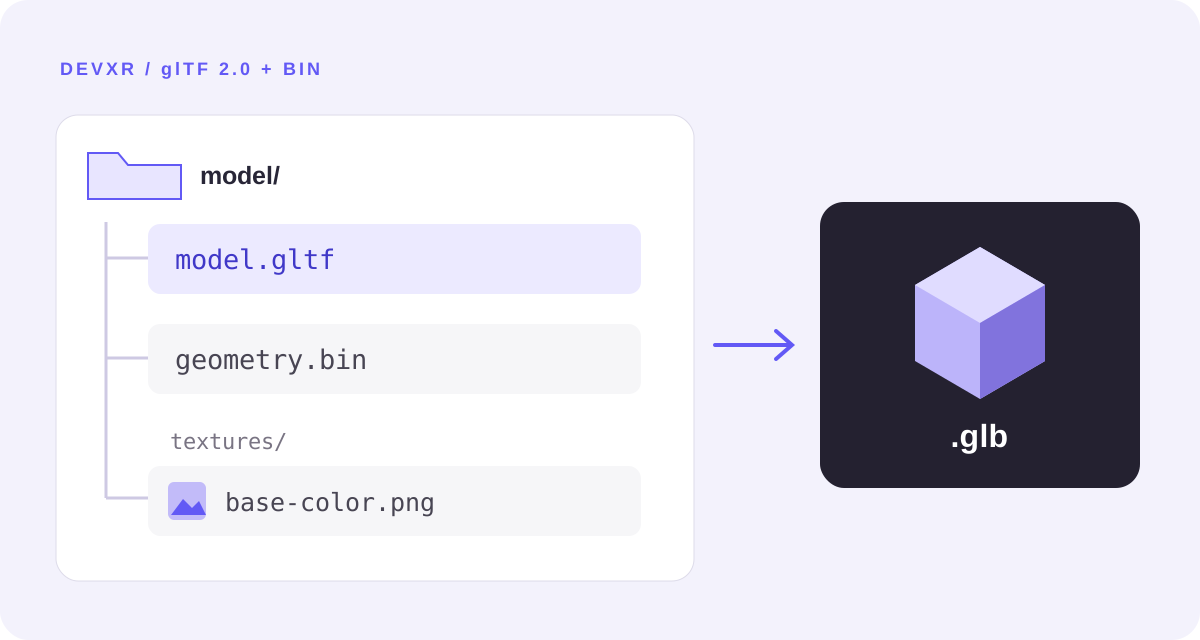
| File | Contents | What to select |
|---|---|---|
| .gltf | Scene description and references | The main glTF 2.0 model. |
| .bin | Binary data, including geometry | Every referenced external buffer. |
| .png, .jpg, .jpeg | Material images | Every referenced external image. |
| .glb | Binary glTF container | A self-contained alternative, imported through the GLB workflow. |
How do you add a glTF and its resources?
Sign in with a verified email address and open the destination project. For a web integrator, start with the export folder supplied by the artist, without renaming individual resources.
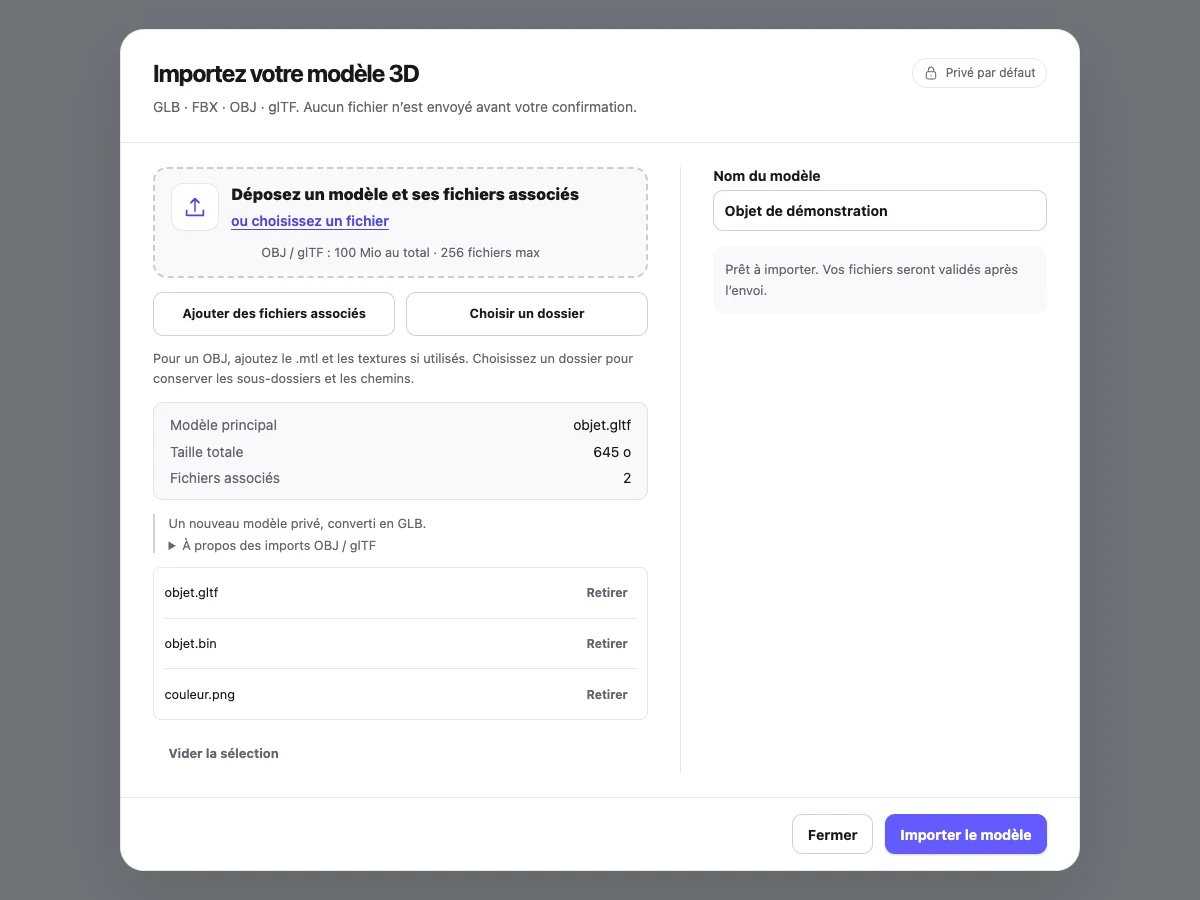
Choose Add model
Select the .gltf and its companion resources, or use Choose a folder when the export contains subfolders.
Preserve relative paths
Do not move an image out of its subfolder without exporting updated references. Use the folder picker: dropping folders is not supported.
Check the main model
Name the model and review the selected .gltf, companion files and total size. Remove unnecessary resources or choose the correct model if the folder contains several.
Confirm the import
Choose Import model. Resources are checked before the processed model becomes available in the viewer.
Which glTF files and references are accepted?
Prepare a glTF 2.0 without extensions. The .gltf workflow currently rejects extensions, including optional ones: disable Draco, Meshopt or KTX2/BasisU export for this workflow. Accepted companion images are PNG and JPEG.
Include referenced local resources: DevXR does not download images or buffers from an external URL. A self-contained glTF with no external resources is also possible.
- The current total ceiling is 100 MiB (104,857,600 bytes), including resources, with at most 256 files. Respect the displayed limit and your organisation’s quotas.
- The .gltf JSON document is limited to 16 MiB; use a separate BIN when geometry makes the document too large.
- Textures can reach 8192 pixels per dimension, but the combined memory budget and scene complexity can still cause rejection.
- Keep simple relative paths; absolute paths, parent-directory traversal and remote references are rejected.
- Version replacement, LODs and thumbnails are not available for models created through this import.
What should you check in the viewer after import?
Open the model when it is ready and compare it with your export. Check textures, normals, transparency, orientation and scale. If the export includes supported animations, check each required clip and its playback.
For a client handoff, choose the camera framing, review lighting and test on a smaller screen. File compliance does not guarantee the same appearance as an offline renderer or the same performance on every device.
- Inspect glossy and transparent areas from several angles.
- Check the expected motion and any unexpected deformation before sharing an animation.
- Save presentation settings; publish only after reviewing the result.
How do you fix an incomplete or rejected glTF?
A glTF that opens on your workstation may depend on files that have not been sent. First restore the complete export folder.
| Problem | Possible cause | Correction |
|---|---|---|
| Missing BIN or image | A reference exists, but its file is not selected. | Include the expected file and preserve its relative path. |
| Rejected external reference | A resource uses an Internet URL or absolute path. | Export again with local companion resources and no remote links. |
| Oversized JSON | Embedded data makes the .gltf too large. | Export with a separate BIN or prepare a self-contained GLB. |
| Unsupported extension | The export uses an extension outside the accepted profile. | Disable the relevant exporter option or prepare a compatible version. |
| Interrupted transfer | The import result was not confirmed. | Refresh the model status before trying again. |
Common questions about glTF import
Do I need to convert glTF to GLB before uploading? No. For a compatible glTF with its resources, DevXR prepares the validated GLB used by the viewer. A self-contained GLB remains another option if you prefer to send one file.
Can I upload just the .gltf? Only if it is self-contained or does not reference any required external resources. Otherwise include every expected BIN and image.
Does importing immediately create a public link? No. The new model is private; publishing and sharing are separate actions. Once published, you can share a link or embed the result with an iframe.
Official glTF 2.0 references
Khronos defines glTF and its resources. These references explain the format; the DevXR limits above describe the product workflow reviewed on 10 November 2026.