Import and formats · OBJ
Import an OBJ file with its materials and textures
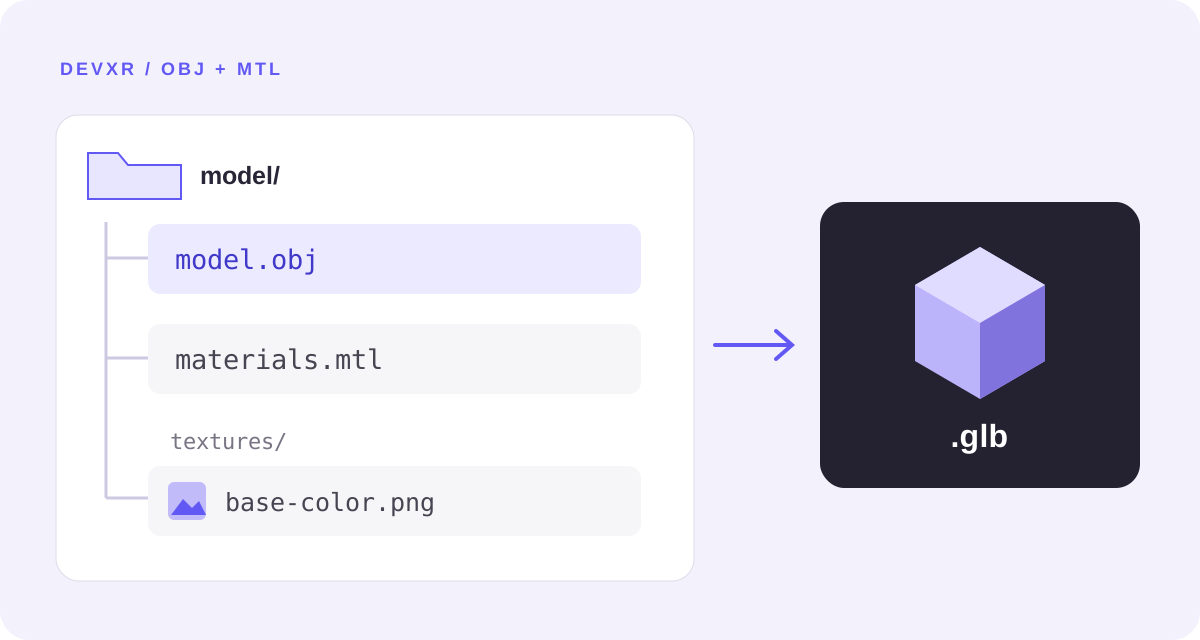
To import an OBJ into DevXR Studio, select the model together with the MTL files and textures it references. Specify the source unit and an export with Y as the up axis. DevXR creates a new private model and prepares a validated GLB for the viewer.
Which files should accompany an OBJ?
The OBJ file describes geometry. An accompanying MTL describes materials and can reference images. Upload those resources together: an OBJ alone does not contain the external textures in your working folder.
For an agency handoff, prepare a clean folder containing one main model and only the resources it needs. If the export uses subfolders, preserve the expected names and relative paths.
| File | Purpose | What to prepare |
|---|---|---|
| .obj | Main model | One main model per import. |
| .mtl | Material definitions | Include the MTL files referenced by the OBJ. |
| .png, .jpg, .jpeg | OBJ texture images | Include the images referenced by its materials. |
How do you import the OBJ into Studio?
Sign in with a verified email address and open your project. No files are sent before you confirm the import.
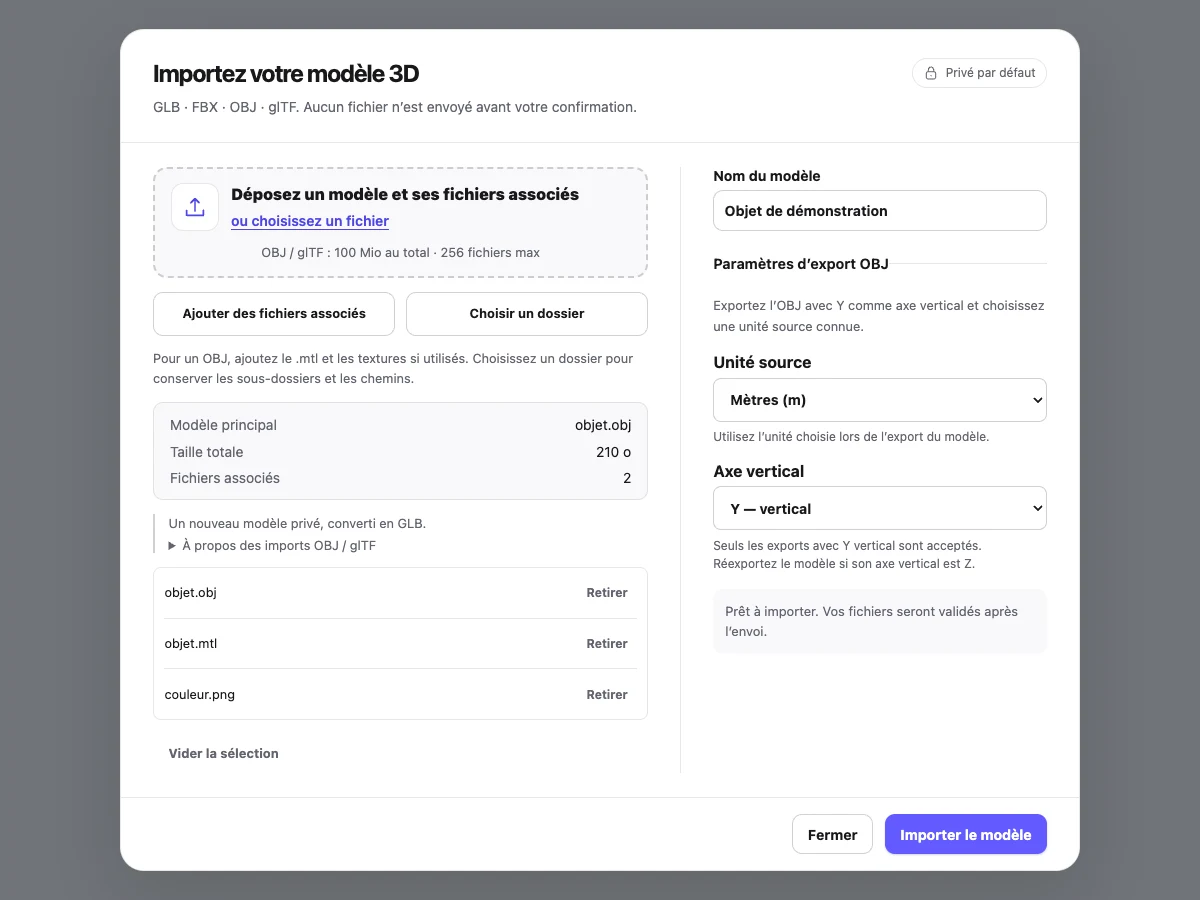
Open the import dialog
From the project, choose Add model, then select your OBJ and its resources.
Preserve folders
Use Choose a folder to preserve subfolder paths. Dropping a folder is not supported. Use Add associated files to complete a flat file selection.
Check the selection
Name the model, then review the main model, companion files and total size. If several models are offered, choose the one you want to import.
Provide OBJ export settings
Choose the actual source unit: metres, centimetres or millimetres. Confirm Y as the up axis; if the source uses another axis, correct the export in your 3D tool.
Start processing
Choose Import model and wait for processing to finish before opening the viewer.
What are the OBJ import limits?
OBJ import creates a new model. Version replacement, LODs and thumbnails are not available for these models. Folder size alone does not determine acceptance: geometry, textures and estimated memory are also checked.
- The current total ceiling is 100 MiB (104,857,600 bytes), including companion files, with at most 256 files. The displayed limit and your organisation’s quotas remain decisive.
- Use simple relative paths. Internet links, absolute paths and parent-directory traversal are not importable resources.
- ZIP is not an accepted model: select the files or their folder.
- OBJ is suitable for static geometry; this workflow does not carry character animation.
- Textures can reach 8192 pixels per dimension, subject to a combined memory budget: an 8K scene is not automatically accepted.
- MTL support uses a controlled subset. For a map_Kd colour texture, use a simple path without spaces or options; this workflow does not promise support for bump, normal or specular maps.
How do you check materials and scale?
Compare the processed model with the export in your 3D tool: silhouette, orientation, proportions, textures and transparent areas. An MTL material can differ from a PBR material in the viewer; conversion does not promise an identical reproduction of every shader.
For a product page, inspect visible surfaces from nearby and at a distance. For an architectural presentation, check orientation and proportions before choosing the camera framing. Reduce textures if the model becomes difficult to use on your recipients’ devices.
- Check the selected unit before trying to compensate visually for a scale error.
- Inspect several angles to spot a missing texture or incorrectly oriented face.
- Then adjust lighting and save presentation settings before publishing.
Why is my OBJ rejected or missing a texture?
First correct the file selection and export. Increasing the lighting cannot fix a missing resource or a prohibited reference.
| Symptom | Check | Action |
|---|---|---|
| Missing companion file | Are the MTL and all its images selected? | Add the resources and preserve their relative paths. |
| Ambiguous paths | Do two names differ only in letter case? | Rename files in the source tool and export updated references. |
| Import unavailable | Are OBJ options complete and the size within the limit? | Complete unit and axis settings; retry later if the service is unavailable. |
| Different material | Does the material use an effect that cannot be translated? | Simplify or bake the material, then inspect a fresh export. |
| Unconfirmed import | Was the transfer interrupted? | Refresh the model status before starting another import. |
Common questions about OBJ, MTL and sharing
Can I import an OBJ without an MTL? Yes, if the OBJ does not reference necessary external materials. To preserve referenced materials, include their files and textures.
Is the model public after import? No. It remains private; you review the result and explicitly choose to publish it. The viewer loads the processed, validated GLB, not the original OBJ file.
Can I embed the result on a website? Once the model is ready and published, follow the publishing guide and then the iframe guide. Test the shared link in a private browser window before sending it to your client.
OBJ format reference
This reference describes the format and its exchange with Blender. The steps and limits above describe the DevXR import reviewed on 10 November 2026.