Import and formats · GLB
Import a GLB file into DevXR Studio
To add a GLB file to DevXR Studio, prepare a self-contained binary glTF 2.0 export, open your project and select the .glb with Add model. Wait for validation and processing, review the viewer, then choose to publish the model to get a shareable link.
Which GLB file should you prepare?
GLB is the binary container for glTF. For this workflow, export a self-contained file with the required data and textures embedded. Renaming another file with a .glb extension does not convert it.
Check the export in your 3D tool before uploading: visible geometry, consistent proportions, materials and the clips you need. Procedural materials and renderer-specific effects need preparation for real-time delivery. The viewer does not automatically reproduce an entire working scene.
- Select one .glb file; this workflow does not accept a separate texture folder.
- If you have a .gltf with BIN files and images, use the glTF guide or export a self-contained GLB.
- Keep your source project in your authoring tool so you can correct and export it again.
How do you import the GLB into a project?
Sign in with a verified email address and open the destination project. Selecting a file prepares the import; uploading begins when you confirm.
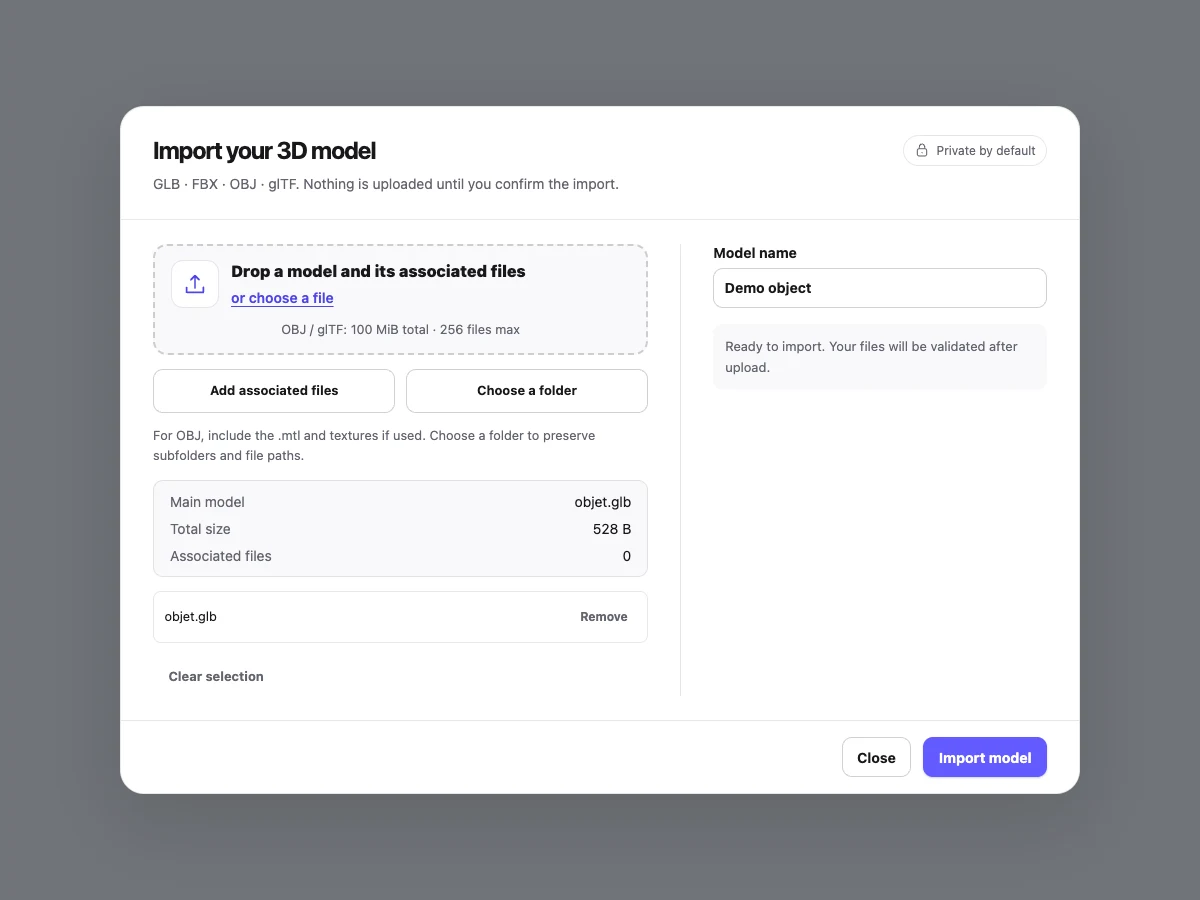
Choose Add model
Open the project’s import dialog and select your .glb file.
Check the file and name
Review the main model and its size, then give the model a clear name.
Confirm the import
Choose Import model and wait for upload confirmation. Processing continues before the viewer becomes available.
Open the ready model
Once processing finishes, review the result before adjusting presentation and publishing.
File size, validation and private models
The current selection ceiling is 100 MiB (104,857,600 bytes). Also respect the displayed limit and your organisation’s quotas: a file below this ceiling can still fail structure or complexity checks.
DevXR checks the file contents and prepares the model for the viewer. Reaching 100% upload does not mean the model is ready. Wait for its final status; after an interruption, refresh that status before starting another import.
- Use a valid glTF 2.0 GLB; truncated files and inconsistent lengths are rejected.
- Prepare resources inside the file: remote textures will not be downloaded to complete your export.
- The imported model remains private. Publishing is an explicit action after you review the result.
What should you check in the viewer?
For a product page, inspect the silhouette, surfaces and transparent areas from several angles. For an agency handoff, also compare orientation and scale with the source export. Then adjust lighting and camera framing; these settings cannot repair a missing texture.
If the file contains supported animations, check the required clips, their apparent duration and model deformation. Test the result on a smaller screen before handing it to a client.
- Inspect colours, transparency, normals and textures both close up and from a distance.
- Check the animations actually included in the exported GLB.
- Save presentation settings, publish, then test the shared link in a private browser window.
Why is the GLB rejected or different from the original?
First correct the source file or export options, then check a fresh export. An accepted file still needs a visual review.
| Symptom | Check | Action |
|---|---|---|
| Selection rejected | Is the file empty, oversized or another format? | Export a real GLB within the displayed limit. |
| Validation failed | Is the export complete and self-contained? | Export binary glTF 2.0 again with its resources embedded. |
| Missing texture | Are the image and UV coordinates present in the export? | Fix the material in the source tool and export again. |
| Missing animation | Were clips included during export? | Check animation export options and test the exported file. |
| Model still processing | Has only the transfer finished? | Wait for the result and refresh its status before retrying. |
Common questions about GLB import
Do I need a BIN or MTL file? Not for this workflow: prepare a self-contained GLB. BIN accompanies some .gltf exports; MTL accompanies OBJ.
Does adding a GLB make it public? No. Review the model and explicitly publish it before sharing.
How can I reduce an oversized GLB? Work on geometry and textures in the source tool. The existing optimisation guide covers preparation; this page describes the Studio import workflow.
GLB format reference
Khronos defines the GLB format in the glTF 2.0 specification. The steps and restrictions above describe the DevXR workflow reviewed on 13 November 2026.