Import and formats · FBX
Import FBX files: materials and animations
DevXR Studio offers a single-file FBX import intended for conversion to GLB for the viewer. Prepare textures and animation in your source tool, then review the processed result. This workflow depends on the conversion service: if it is unavailable, export a self-contained GLB and use GLB import.
Which FBX file should you select?
This workflow receives a single .fbx file with no separate texture folder. Prepare required resources in your export; images left only on your workstation will not be added to the upload. Renaming a Maya or Blender scene to .fbx is not enough.
Keep a copy of the source project and check the export: geometry, units, axes, materials and clips. The current selection ceiling is 100 MiB (104,857,600 bytes), subject to the displayed limit and your organisation’s quotas.
How do you add the FBX to Studio?
Sign in with a verified email address and open the destination project. The screenshot below shows file selection before upload confirmation.
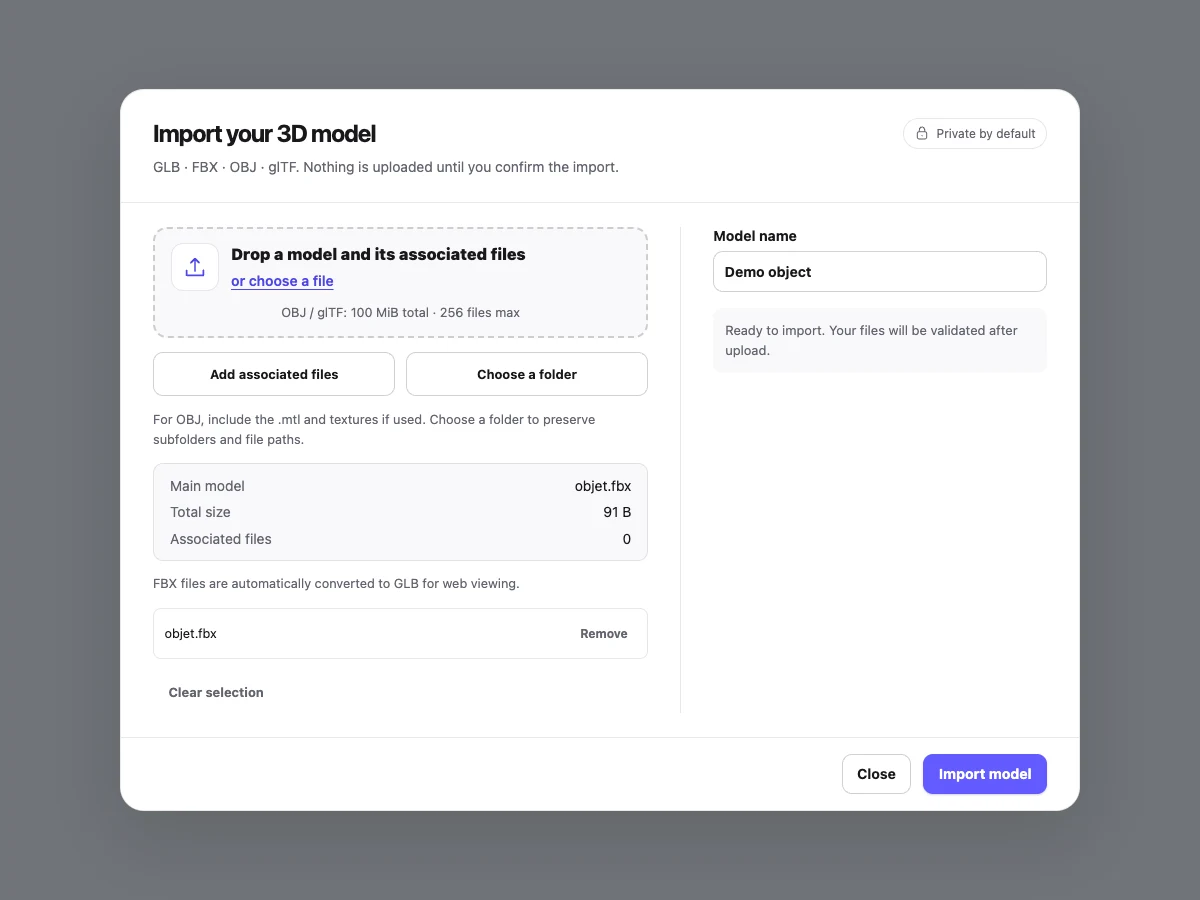
Choose Add model
Select the single .fbx file prepared in your 3D authoring tool.
Review the selection
Check the file name and size, then enter a model name.
Confirm the upload
Choose Import model. After uploading, wait for conversion and validation of the resulting GLB.
Review the ready model
Open the viewer once the model is ready. If the service fails, prepare a self-contained GLB in the source tool.
What happens to the FBX file?
When the conversion service is operational, DevXR converts the FBX to GLB, then validates and prepares that result for the viewer. The browser displays the processed GLB; it does not load the source FBX scene directly.
Availability of the FBX converter on the public service still needs confirmation. If your import fails at that stage, use the GLB alternative or contact DevXR with the displayed message. An accepted selection or 100% upload does not guarantee successful conversion.
- The model remains private until you choose to publish it.
- Conversion can change materials; inspect the result before a client handoff.
- Processing time and acceptance also depend on model complexity, not just file size.
What should you check for materials and animation?
Not every authoring-tool material translates identically into glTF. Prepare textures and UVs in the source project; simplify or bake effects that depend on a rendering engine. Compare colour, transparency and surface appearance in the viewer.
The converter is configured to import animation and export the animations, skins and morphs it can translate into GLB. This does not guarantee preservation of every constraint, simulation or FBX feature. Check clips, deformation and character pose after processing.
- Check orientation and proportions before adjusting the camera.
- For Mixamo, verify the character, its rig and the animations actually included in the export.
- Save presentation settings, then test the published link on recipients’ devices.
Why does FBX conversion fail or lose a texture?
Check both the source file and conversion availability. Avoid uploading the same file repeatedly without checking the model’s final status.
| Symptom | Possible cause | Action |
|---|---|---|
| File cannot be selected | Oversized, empty or another format. | Export an FBX within the displayed limit. |
| Conversion failed | Unavailable service or incompatible export. | Export a self-contained GLB or contact DevXR with the displayed message. |
| Missing texture | The export depends on an image left on the workstation. | Prepare a self-contained export with textures and retry. |
| Different material | A shader or effect did not translate into glTF. | Simplify or bake the material in the source tool. |
| Incorrect animation | A clip, rig or constraint did not translate. | Check the source export and review a GLB version. |
Common questions about FBX and GLB
Can I add separate textures with my FBX? Not in this workflow: FBX upload is a single file. Prepare resources in the export or choose a self-contained GLB.
Does DevXR provide an anonymous FBX converter? No. This guide describes importing into a Studio project with an account and a verified email address.
Should I choose FBX or GLB for web delivery? If you already have a verified self-contained GLB, use it directly. FBX is a source format that requires an available converter and a review of the converted result.
Conversion and preparation references
These references explain formats and exports. The DevXR steps were reviewed on 13 November 2026. Review your conversion result before publishing the model.