Publishing and sharing · glTF to URL
glTF to URL: from file to 3D link
Import your glTF 2.0 with its BIN files and textures, check materials and compatible animations, then prepare the opening view. Save the settings, publish and copy the viewer URL to present the scene in a browser. Uploading alone does not make the model public.
From a glTF folder to one address to share
Your export may contain a .gltf document, several BIN files and images. Your recipient receives one address that opens a 3D presentation with the controls you have allowed. They do not have to rebuild your export folder. The viewer loads the processed, validated GLB rather than the source JSON document directly.
A product team can present an object’s surfaces; an agency can request a review of a detail or movement; an integrator can place the viewer in a page with an iframe. Decide what your recipient should understand before choosing settings.
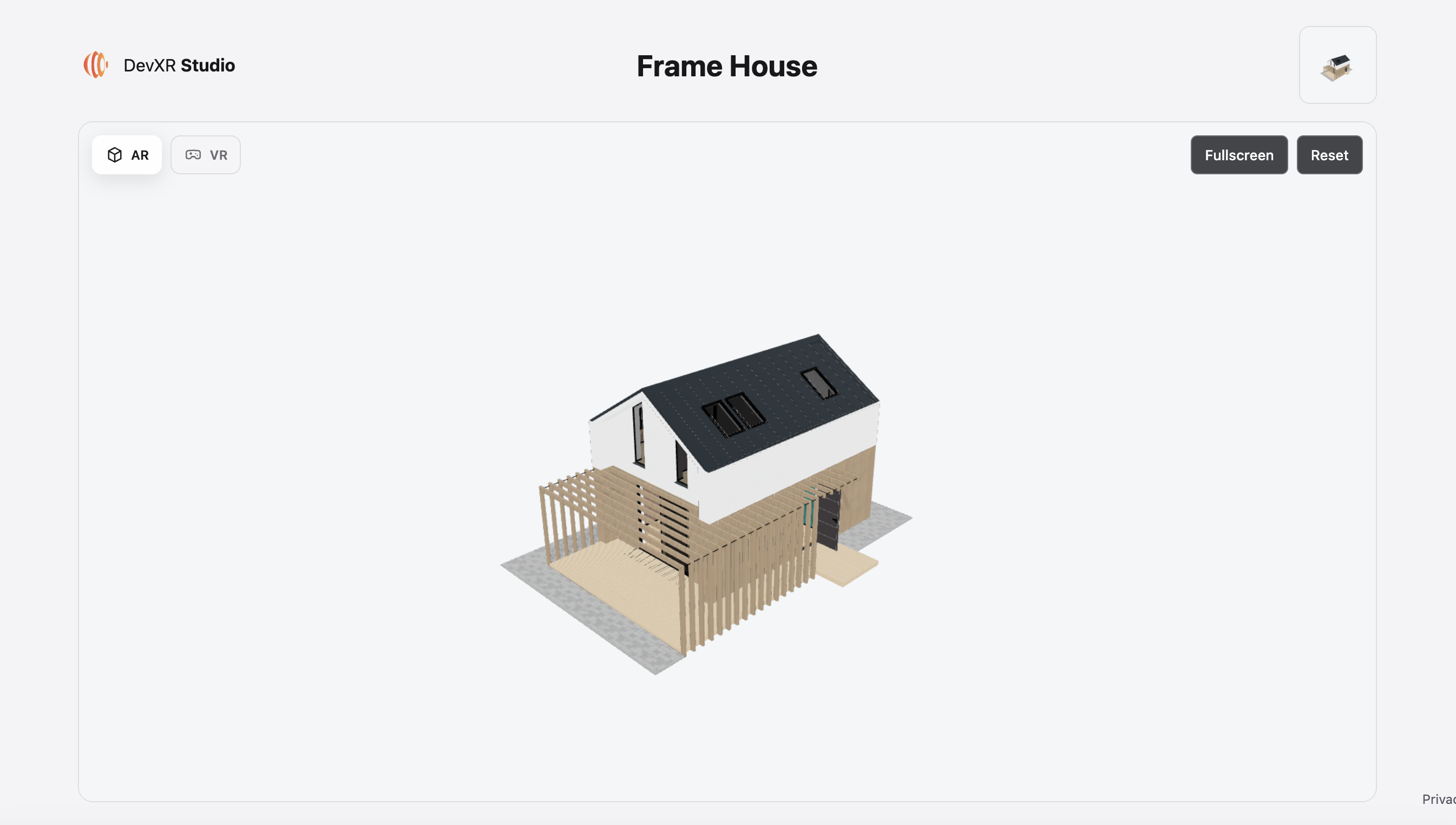
Prepare a complete, compatible glTF export
Keep the .gltf, every referenced BIN buffer and its images at their original relative paths. The JSON can be small while companion resources make up almost all the folder’s size. A model that opens on your workstation may still depend on an image left out of your selection.
The separate .gltf workflow accepts glTF 2.0 without extensions: all extensions are currently rejected, including optional ones. Disable Draco, Meshopt and KTX2/BasisU for this export. Accepted companion images are PNG and JPEG; DevXR does not download resources from external URLs.
| Check | This workflow’s profile | Recommended preparation |
|---|---|---|
| Main document | One glTF 2.0 document, with JSON limited to 16 MiB. | Use a separate BIN if embedded data makes the document too large. |
| Resources | BIN files and PNG/JPEG images referenced by simple relative paths. | Keep subfolders and do not rename a resource without updating the export. |
| Combined selection | At most 100 MiB and 256 files, with displayed limits and quotas also applying. | Remove unnecessary files; structure, complexity and estimated memory are still checked. |
| Alternative delivery format | A self-contained GLB follows the GLB workflow. | Use the GLB guide if you already have a reviewed self-contained export. |
Import the scene and resources together
Sign in with a verified email address and the required project permissions. This workflow creates a new private model. Models created by this glTF import do not offer version replacement, LODs or thumbnails.
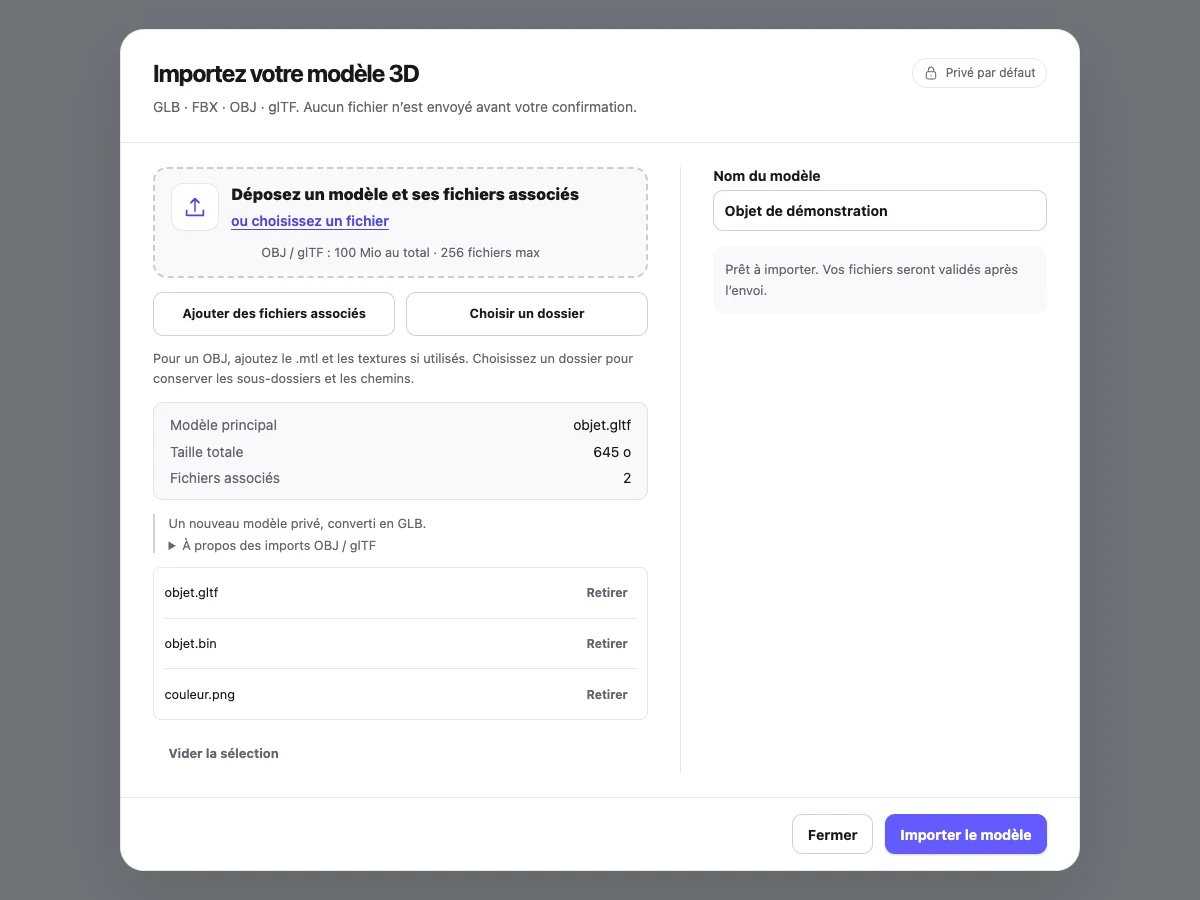
Choose the folder or companion files
Choose Add model. Use Choose a folder for an export containing subfolders; dropping folders is not supported. Otherwise select the .gltf and add its resources.
Review the selection
Name the model and check the main document, companion BIN files and images, and total size. If several models are detected, choose the one intended for delivery.
Confirm and wait for the ready state
Choose Import model. Uploading is followed by validation and processing; check the status before opening the viewer or starting again after an interruption.
Review materials and the processed scene
Open the ready model and compare it with the export from several angles. Inspect matte, glossy and transparent regions, normals, orientation and proportions. Technical validation does not replace this visual comparison.
A different environment changes the appearance of reflective materials. Compare lighting first before changing the overall appearance. Conversely, a missing texture or deformed geometry needs a source correction: exposure, background and face-display settings do not repair the model’s contents.
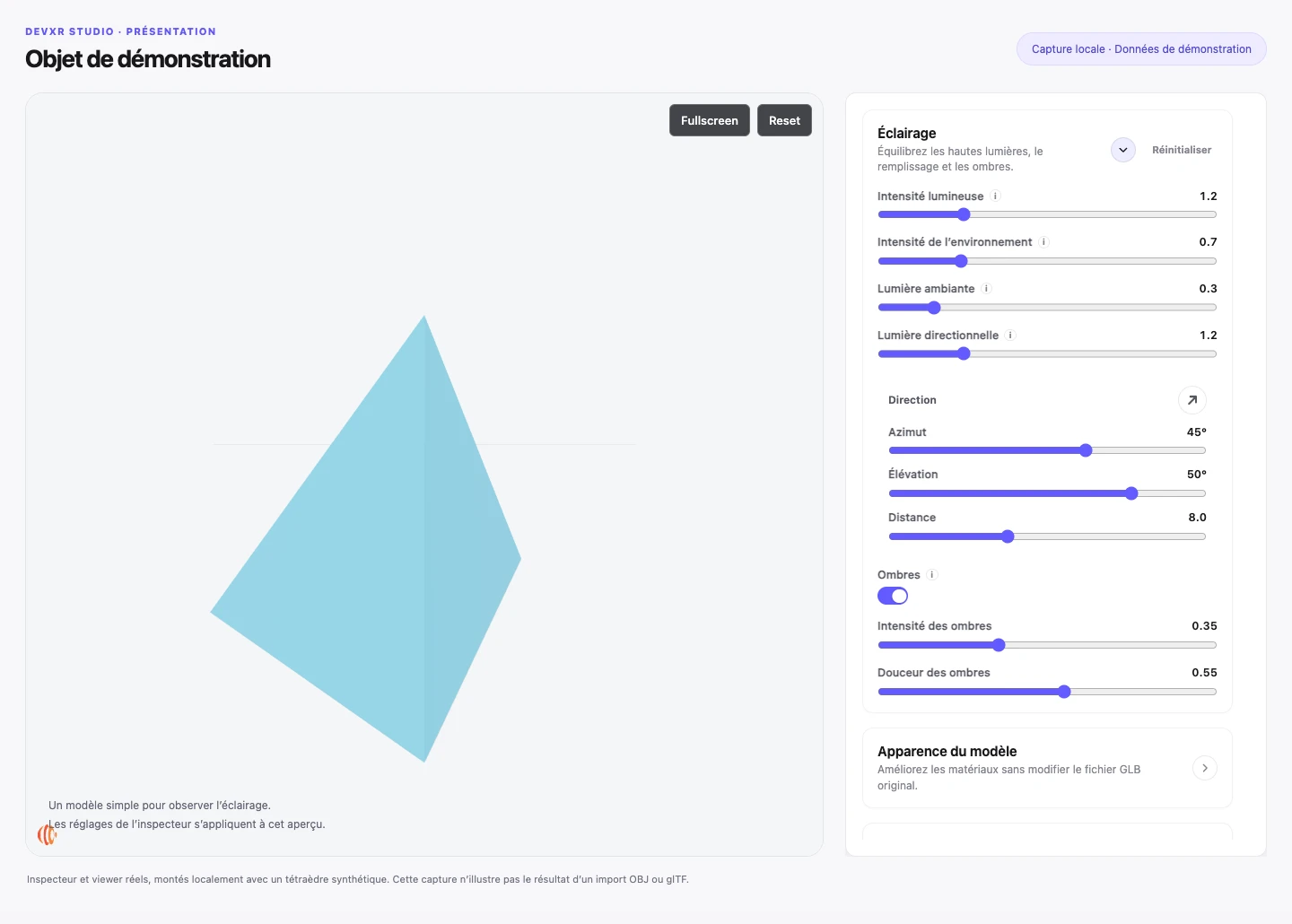
- Product team: inspect reflections on a curved surface, then the readability of logos and transparent areas.
- Agency: check that the scene contains the right variant and only the movements needed for review.
- Integrator: review the result that actually loads, rather than only the working file supplied by the artist.
Configure the camera, lighting and viewer quality
In the Style tab, first choose the view that explains the model. Save the current view when the whole object is readable and the detail to discuss is reachable by zooming. Check that framing in a narrow window: a view that works on a wide screen can crop an essential part on mobile.
Then configure background and lighting. These options configure the presentation; they do not export the glTF again with a new scene or alter its source contents.
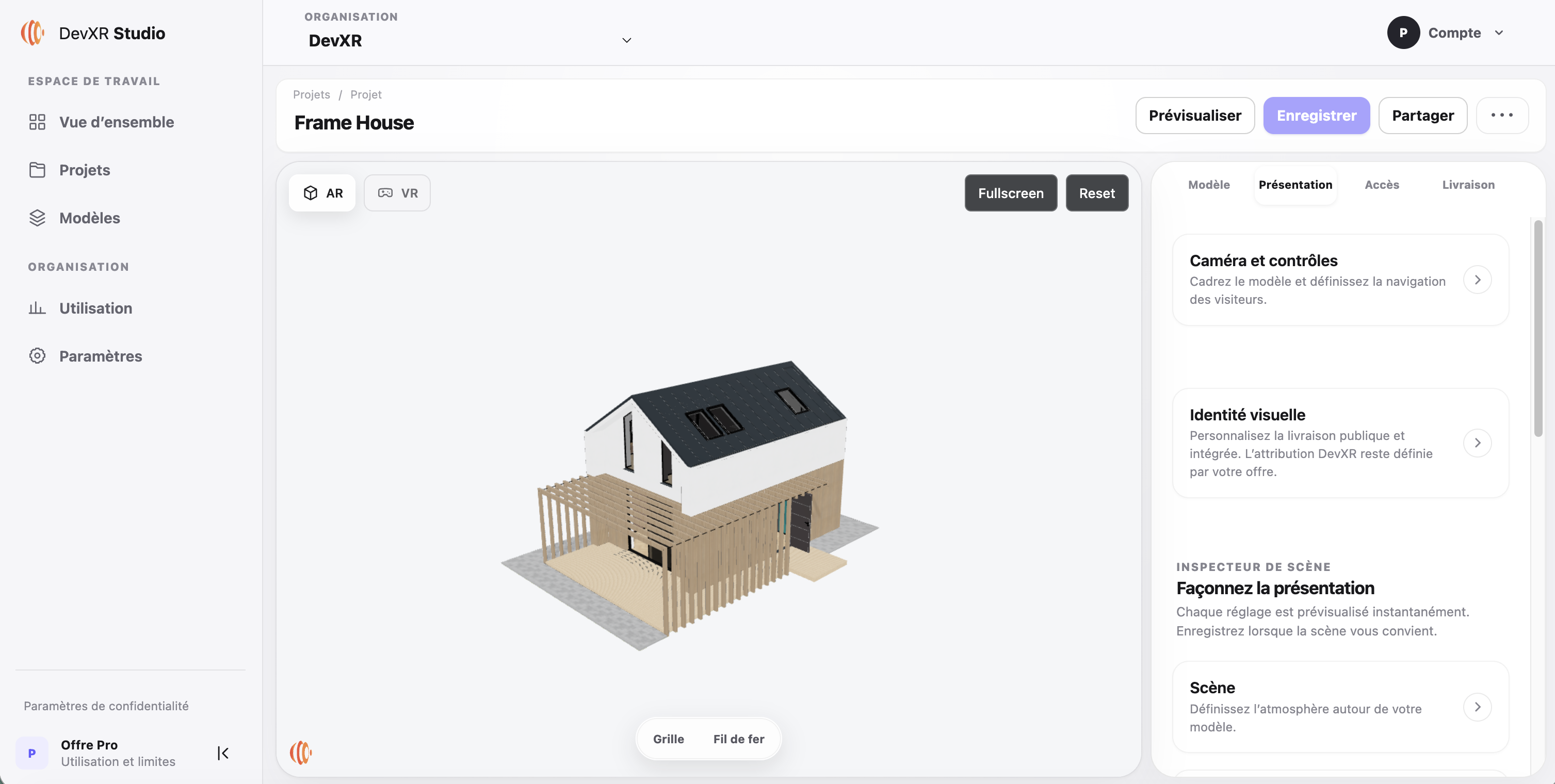
| Option | Useful decision | Check |
|---|---|---|
| Start view, field of view and distances | Show the whole object, then allow zooming to the useful part. | The visitor does not lose the object and perspective remains appropriate for the product. |
| Environment and intensity | Make reflections readable without washing out material variation. | Inspect a matte side and a glossy side; one reflection does not prove material fidelity. |
| Background and shadows | Separate the silhouette and give a sense of volume; shadow intensity ranges from 0 to 1. | The background remains distinct from the object and shadows do not hide a mechanism or text. |
| Pixel ratio, from 0.5 to 2 | Balance sharpness and GPU cost. | Try a lower value if mobile performance suffers; this does not reduce download size. |
| Rotation, zoom, pan and fullscreen | Offer the controls required for review. | Test these controls on the public page and inside the iframe’s real container. |
Choose a useful animation when the model contains one
Animation belongs to the exported file. The playback panel does not create motion absent from the scene; available controls depend on recognised clips. Check each required clip before choosing the one visitors will see.
For a mechanical product, a short movement can explain opening or assembly. For a material review, a stable view may be more useful. Viewer auto rotation and clip playback are separate settings: one rotates the presentation, while the other plays animation contained in the model.
| Control | Use | Review point |
|---|---|---|
| Playback | Enable a recognised clip or leave the presentation still. | Expected motion exists after processing and produces no unexpected deformation. |
| Clip | Select the useful movement from recognised clips. | The name and result match the review instruction sent to the client. |
| Loop | Repeat a demonstration or allow movement to finish. | The transition from end to beginning remains understandable when looping is enabled. |
| Speed, from 0.1 to 3× | Slow down to inspect a step or speed up a demonstration. | The selected speed keeps movement readable; it does not correct a badly exported clip. |
- Watch the beginning, end and at least one complete cycle before sharing.
- Check movement on a representative device: animation, shadows and resolution combine in rendering cost.
- If no clip appears, check the source export and compatibility before looking for a playback setting.
Save the scene and get the public URL
Settings visible in your Studio session do not prove what is published. Separate saving, publishing and copying the link; check each result before sending it.
- Public URL shares a standalone presentation. The iframe URL and its HTML code are used for embedding in a page.
- Include a useful instruction with the link: the clip to watch or surface to inspect, rather than simply “here is the model”.
- To remove public access, unpublish and test the old link without a session. Copies or screenshots already made are not erased.
Save the settings
Save presentation and the opening view, including playback choices when the model has a compatible clip. Wait for confirmation.
Publish the ready model
In Delivery, check the model and version being presented, then publish. A private model or one still processing is not a public presentation.
Copy the viewer link
In Access, copy Public URL at the top of the panel. Use this address for the standalone presentation; iframe options are under Embed on a website.
Check outside Studio
Open that address in a private browser window. The expected result is your published presentation, rather than a dashboard route.
Validate the recipient experience
Test the link outside your session and on target devices before announcing delivery. glTF compliance guarantees neither an identical result to an offline renderer nor the same performance on every phone.
| Use | Test to perform | Delivery criterion |
|---|---|---|
| Product team | Open the link and inspect several angles, reflections and transparent areas. | The product is understandable and important materials remain readable. |
| Agency and client | Follow the message instructions and watch the selected clip when present. | The correct scene appears and the useful motion is identifiable without software instructions. |
| Web integrator | Load the iframe in the real page and check its size, title and allowed origins. | The viewer is usable on mobile and with a keyboard in the parent-site context. |
| Publication owner | Check access conditions and the link in a private browser window. | The presentation and access match what should be delivered. |
- Check complete loading, any errors and restoring the initial view.
- Public links can be forwarded; make sure you have permission to distribute the model and its textures.
- Keep useful information around the viewer: dimensions, context and a textual description remain necessary.
Resolve file, appearance or link problems
Begin with the failing stage. A rejected resource needs an export correction; a reflection difference also calls for a lighting comparison; an inaccessible link needs a publication check.
| Symptom | Possible cause | Practical action |
|---|---|---|
| Missing BIN or image | The document references an unselected or moved resource. | Restore the complete export folder and preserve its relative paths. |
| Rejected extension | The .gltf declares an extension, including an optional one. | Export without extensions for this workflow; disable Draco, Meshopt and KTX2/BasisU in particular. |
| Oversized JSON | Embedded data takes the .gltf document above 16 MiB. | Use a separate BIN or prepare a compatible self-contained GLB. |
| Missing or incorrect animation | The clip was not exported correctly or is not recognised in the result. | Check the export and available clips; changing speed does not recreate motion. |
| Different appearance from the source tool | Lighting, materials or source-tool effects are not equivalent. | Compare under appropriate lighting, then correct or simplify source materials if needed. |
| Slow viewer on mobile | The scene, textures, animation and effects exceed the device’s capabilities. | Try fewer effects and a lower pixel ratio; prepare a lighter export if necessary. |
| Inaccessible link | A Studio address was copied, the model is unpublished or access conditions differ. | Check publication, copy Public URL again and test outside your session. |
Questions before sharing a glTF
Do I need to create a GLB before importing? Not for a compatible glTF with all its resources: DevXR prepares the validated GLB used by the viewer. A reviewed self-contained GLB remains another import route.
Can I send only the .gltf? Only when it is self-contained or references no required external resources. Otherwise include every expected BIN and image. A remote URL does not replace the local resource you need to provide.
Are all glTF materials and animations guaranteed? No. The import profile currently rejects all extensions, and each result needs review. A standard format does not guarantee reproduction of every effect in your software.
Is this a file URL or a presentation? This link opens the published viewer. Downloading, when allowed, is separate; Studio settings do not generate a new export with presentation edits baked in.
What if I prepare a new variant? Version replacement is not available for these imports. A new model needs its own publication and address checked before replacing a client link.
Prepare my glTF presentation