
A URL to send
Add the link to an email, a conversation or a proposal. A published model with public access can be viewed without a DevXR account.
3D assets to URL · DevXR Studio
You have built the model. Now give your client a simple way to explore it. Upload your GLB file to DevXR Studio, prepare its presentation and share a URL that opens in the browser.
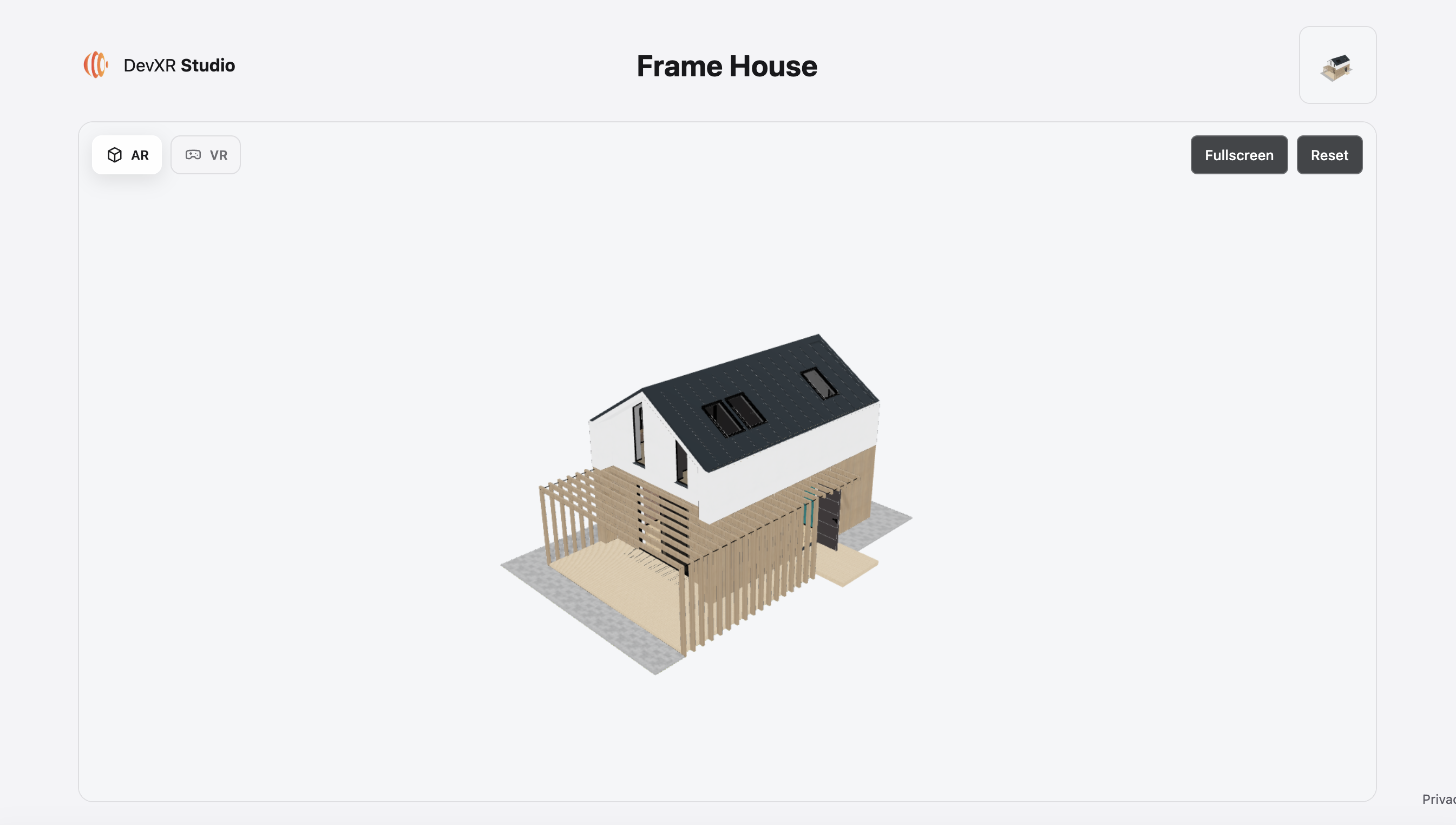
From a file to an experience
Sending a file does not always make a project easy to understand. Your recipient still needs to know how to open it, have the right software and find the detail you are discussing. DevXR Studio hosts the processed model and displays it in a web viewer: your recipient opens the link, rotates the object, zooms in and examines what matters to them.
The URL opens an interactive presentation. It is neither a direct GLB download link nor an image converted from your file.
Add the link to an email, a conversation or a proposal. A published model with public access can be viewed without a DevXR account.
Choose the opening view, background and lighting. You show the model in a visual setting you have checked.
Copy the iframe code to display the viewer on a compatible page, alongside your text and photos.
From your file to your first share
Start with a GLB file and a DevXR account. Before publishing, verify your email address and make sure you have the required project permissions.
Create or open a project, then upload your GLB model. Wait for processing to finish and the model to be ready. If the upload fails, fix the file before continuing.
Prepare my fileOpen the model in Studio. Check textures, scale and framing; adjust the camera, environment and background. Save your settings, then preview what you are about to share.
Explore the settingsIn Delivery, publish the ready version you want to present. In Access, find “Sharing and embed links” and copy the Public URL. A private Studio preview does not replace publication.
Publish and shareOpen the URL in a private browsing window, then on mobile. Check loading, framing and access conditions. You can then send the link knowing what your recipient will see.
Share or embed on a website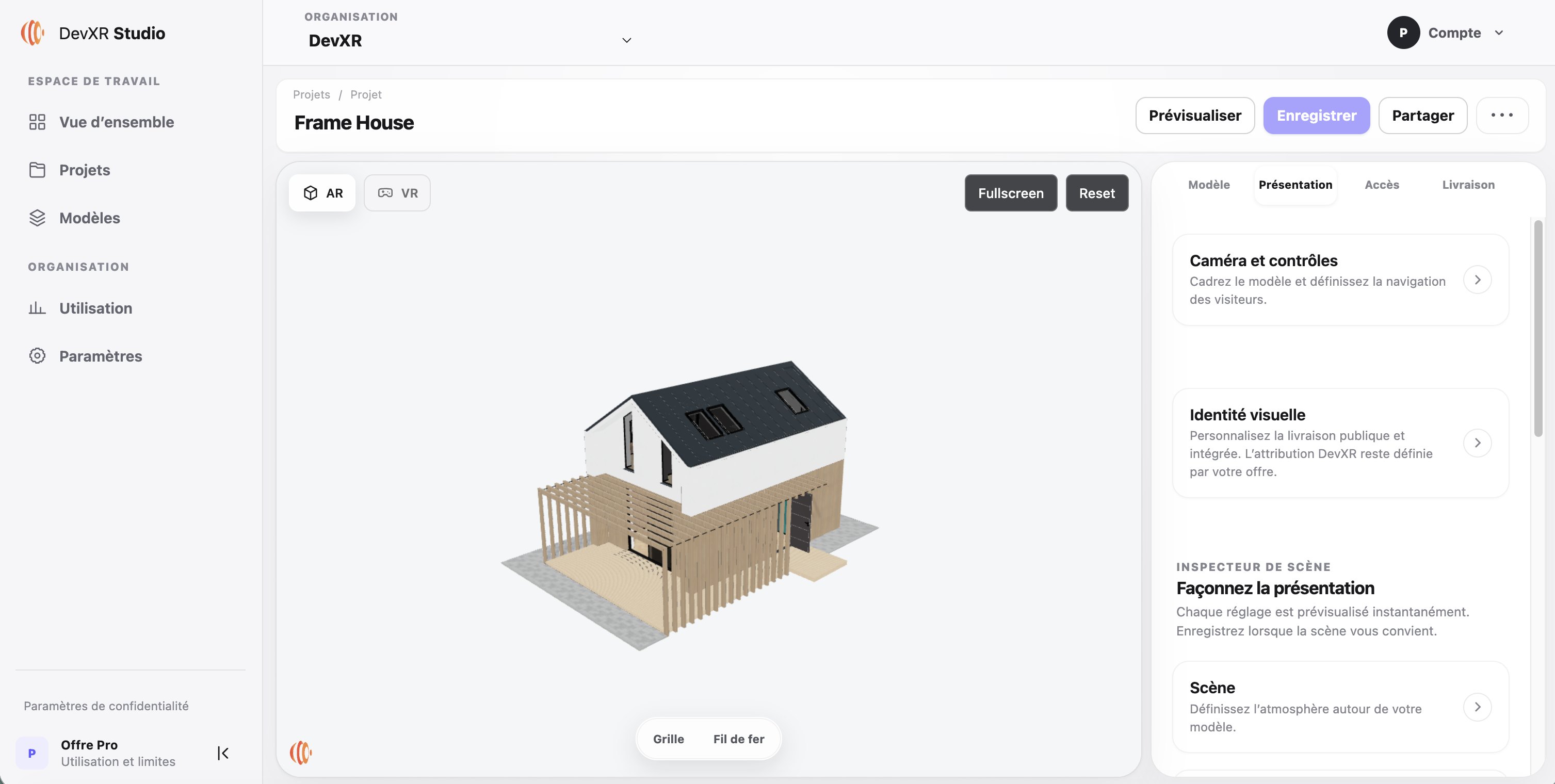
One model, several destinations
3D studios & freelancers
Include a link in your message and point out the detail to review. Your client can explore the model from different angles before your next conversation.
A shared reference for discussing the same object.
Product teams & web agencies
Add the viewer to a product or project page with an iframe. Keep photos for key details and let visitors choose their own angle in 3D.
An interactive experience without building a viewer.
Architecture & project presentations
Share a model prepared for the web before a meeting. Your recipient can examine its form and volume; include the plans and supporting information the project needs.
A visual complement to your project documents.
Less work around the model
The benefit comes from tasks you no longer repeat for every handoff: explaining which software to install, preparing a view for every requested angle or sending a new address after each revision.
Send a web address. Your recipient uses the viewer controls in a compatible browser, without installing your creation software.
Upload a new version of the same model, check it and activate the ready version. The URL stays the same as long as you keep that model and its delivery link.
Place the iframe once on your compatible page. A new active version of the same model can then be presented without replacing the embed code.
Before your first link
It means taking a 3D file and making it available through a web address that opens an interactive viewer. DevXR Studio handles hosting and presenting the processed model; you choose when to publish it and who receives the link.
This guide starts with a .glb file. Check that its textures and required elements are included, and respect the limits shown during upload. If you work in a 3D creation tool, check the export guides before uploading your model.
No coding is needed to prepare the viewer and copy a public URL. To display the model on a website, you need a block or component that accepts iframe code; this depends on your CMS, theme and editing permissions.
Not for a published model with public access. If you configure protection or another access condition, test the actual recipient experience before sending the link.
Yes: upload a new version into the same model and activate the ready version you want to show. Creating another model or renewing the delivery link creates another address. Check the result in a new session.
It depends on the model’s size and complexity and the processing workload. Wait for the ready state, check the presentation and publish. No fixed conversion time or productivity gain is guaranteed.
No. Models are private by default, and the sharing workflow here requires explicit publication. Do not share confidential content through public access.
It can be viewed in a compatible mobile browser. Performance depends on model size, textures, device and network: test your presentation on the intended devices before sharing.
Your turn to show
Take a GLB model you are allowed to share. Prepare its presentation in Studio, open your first link and see it the way your client will.
Create my first 3D link