
01 · Understand
Public URL, iframe URL or iframe code: which should you use?
The public URL opens the model page. The iframe code displays the viewer inside your own page. The iframe URL is the viewer address to use when your tool only asks for an embed URL.
| What you want to do | What to use | Result |
|---|---|---|
| Send an email or message | Public URL | The recipient opens the model page. |
| Add a “View in 3D” button | Public URL | The button opens the public viewer. |
| Display 3D on a product page | Iframe code | The viewer appears inside the website page. |
| Configure a block that asks for an iframe address | Iframe URL | The block loads the embedded viewer. |
| Add a 3D view alongside photos | Iframe inside a compatible gallery | A gallery slide contains the viewer. |
These addresses display a viewing experience. Do not use them as image URLs or direct links to a GLB file.
02 · Share
Share a 3D model with a link
Start with a processed GLB model that is ready to publish. Your account needs publishing permissions and a verified email address. The model remains private until you publish it.
Prepare the presentation
Open the model in DevXR Studio. Check its appearance, camera and presentation settings, then save your changes.
Publish from “Delivery”
In the Delivery tab, select Publish when the active version is ready. Check its published status before sending the address.
Copy the public URL
Open the Access tab. Under Access and sharing → Sharing and embed links, copy the Public URL field.
Test the recipient’s experience
Open the link in a private browsing window. Check that the model loads and the access conditions match your intention, then add the link to your message or button.
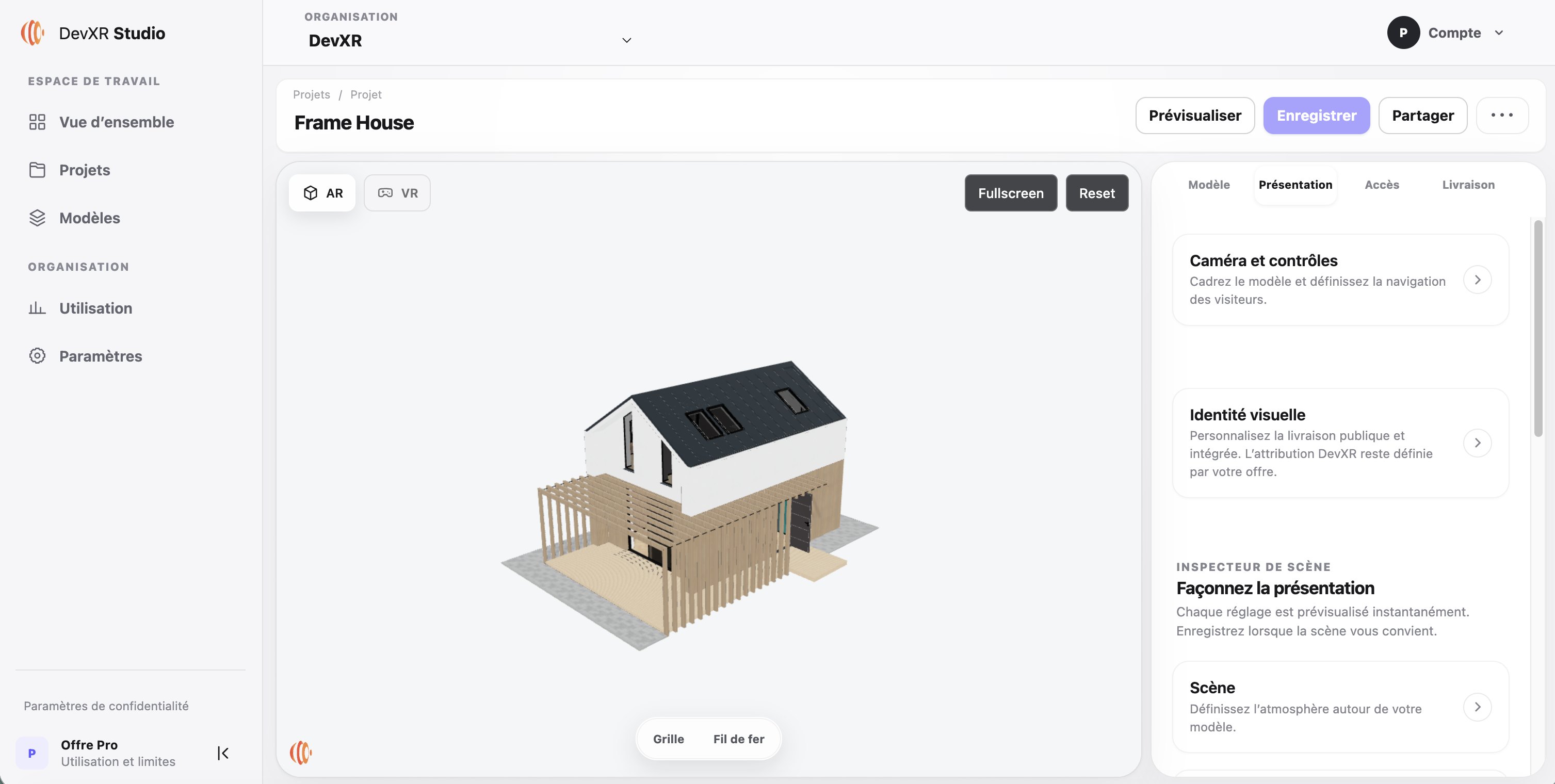
Before sharing: a public link can be forwarded to other people. To remove public access, select Unpublish, then check the old link again while signed out. Unpublishing does not erase screenshots or copies a visitor has already made.
03 · Embed
Embed a 3D viewer on your website with an iframe
An iframe reserves an area of your page for the DevXR viewer. DevXR continues to host the model; you choose where it appears and how much space it takes up on your website.
Get the code from Studio
Under Access → Sharing and embed links, select Copy iframe code. If your tool only asks for an address, use Iframe URL.
Add an HTML block to your page
Paste the code into an area that supports iframes: an HTML block, custom component or page template. Image blocks and plain text fields are not suitable.
Adjust the presentation
Allow a flexible width and enough height. Give the iframe a title that describes the model, and keep the fullscreen permission if you want to offer that control.
Check your final website
Test desktop, mobile, keyboard navigation and fullscreen. Also check the host website’s security policies and the domains configured in Studio.
<iframe
  src="https://viewer.devxr.fr/embed/pub_VZivihNIlDZNQPAdbGg7BPEx3x9FQ1X4"
  title="3D presentation — Frame House"
  width="100%"
  height="480"
  loading="lazy"
  allow="fullscreen; xr-spatial-tracking"
  allowfullscreen
  referrerpolicy="strict-origin-when-cross-origin"
  style="border: 0;"
></iframe>This example uses the demo model. For your own model, copy the code generated in Studio.
WordPress, Shopify and WooCommerce: check the available block
The method depends on your CMS, theme and editing permissions. Check that your chosen block allows an external iframe. This tutorial describes an HTML integration; it does not assume a native DevXR plugin or automatic compatibility with every gallery.
04 · Present your product
Add a 3D model to an image gallery
A product page can combine photos, detail views and an interactive 3D view. The gallery displays thumbnails; selecting the 3D thumbnail opens the viewer in its main display area.
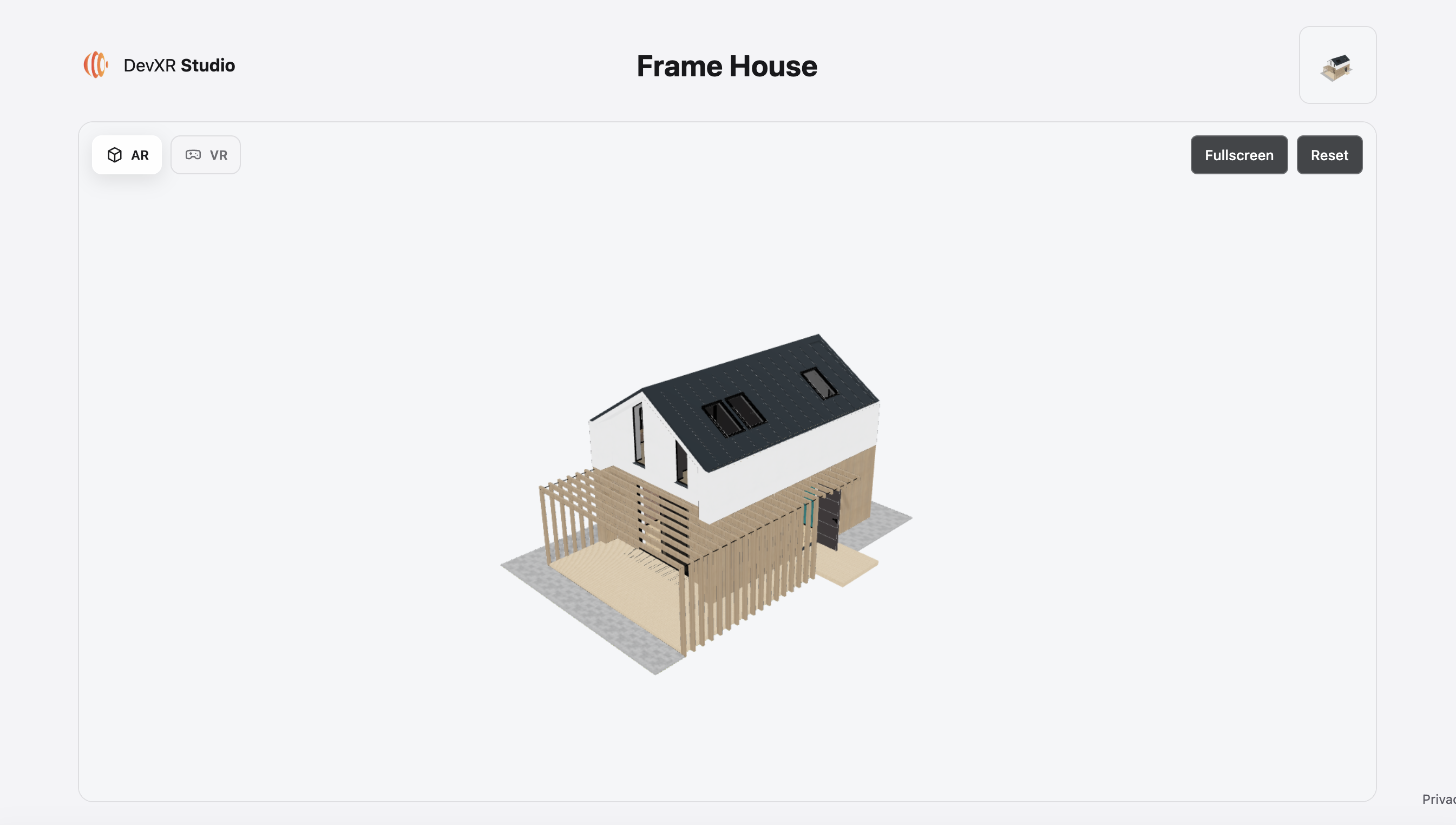
Keep your images in the gallery
Your website continues to manage the photos. Add a clearly labelled thumbnail for the interactive view.
Reserve a slide for the iframe
The gallery must support HTML content or a custom component. Insert the DevXR iframe code with suitable dimensions.
Load 3D on demand
For this integration, wait until the visitor selects the 3D view before mounting the iframe. Provide a loading state, a way back to the images and a link to the public page if the viewer does not display.
The gallery is an integration on the host website. Simply replacing a photo’s address with a model URL does not turn an image gallery into a 3D gallery.
05 · Check
The model does not display: what should you check?
The public link does not work
Check that the version is ready and published. Copy the URL again from Studio and test it while signed out. Check the delivery’s configured access conditions.
The link works, but the iframe is blank
Check the embed URL, whether your block allows iframes and the website’s security policies. Look for CSP errors in the browser console; do not disable these protections globally.
The viewer is too small on mobile
Check the container’s width and height. Test an actual responsive page with accessible controls and surrounding content.
The gallery only accepts images
Use a button linking to the public URL, or adapt a slide to support HTML. The integration depends on what your theme allows.
06 · The essentials
Frequently asked questions
Do visitors need an account to view the model?
A published model with public access can be viewed without an account. If you have configured another access condition, check the experience actually presented to the recipient.
Can you put the 3D viewer directly inside an email?
Use an image with a link to the public page. Do not rely on an interactive iframe running inside the message.
Does the model need to be published before embedding?
The workflow described here uses a processed and published model. A private preview in Studio does not constitute publication.
Does an iframe replace product photos?
You can keep photos to show important details and add 3D as a complementary view. Visitors can then choose how they want to explore the product.
Does 3D automatically improve search rankings?
Adding a viewer does not guarantee any ranking. Keep a title, product description and useful information on the host page, along with meaningful alternative text for your images.
What happens after unpublishing?
Public access is removed. Check the old link and the embed in a new session; screenshots or copies visitors have already made are not revoked.
Your turn
Your model. Your next page.
Prepare your model in Studio, then choose the link or integration that fits your use case.
Create a DevXR account ↗