
What is an AR viewer for a website?
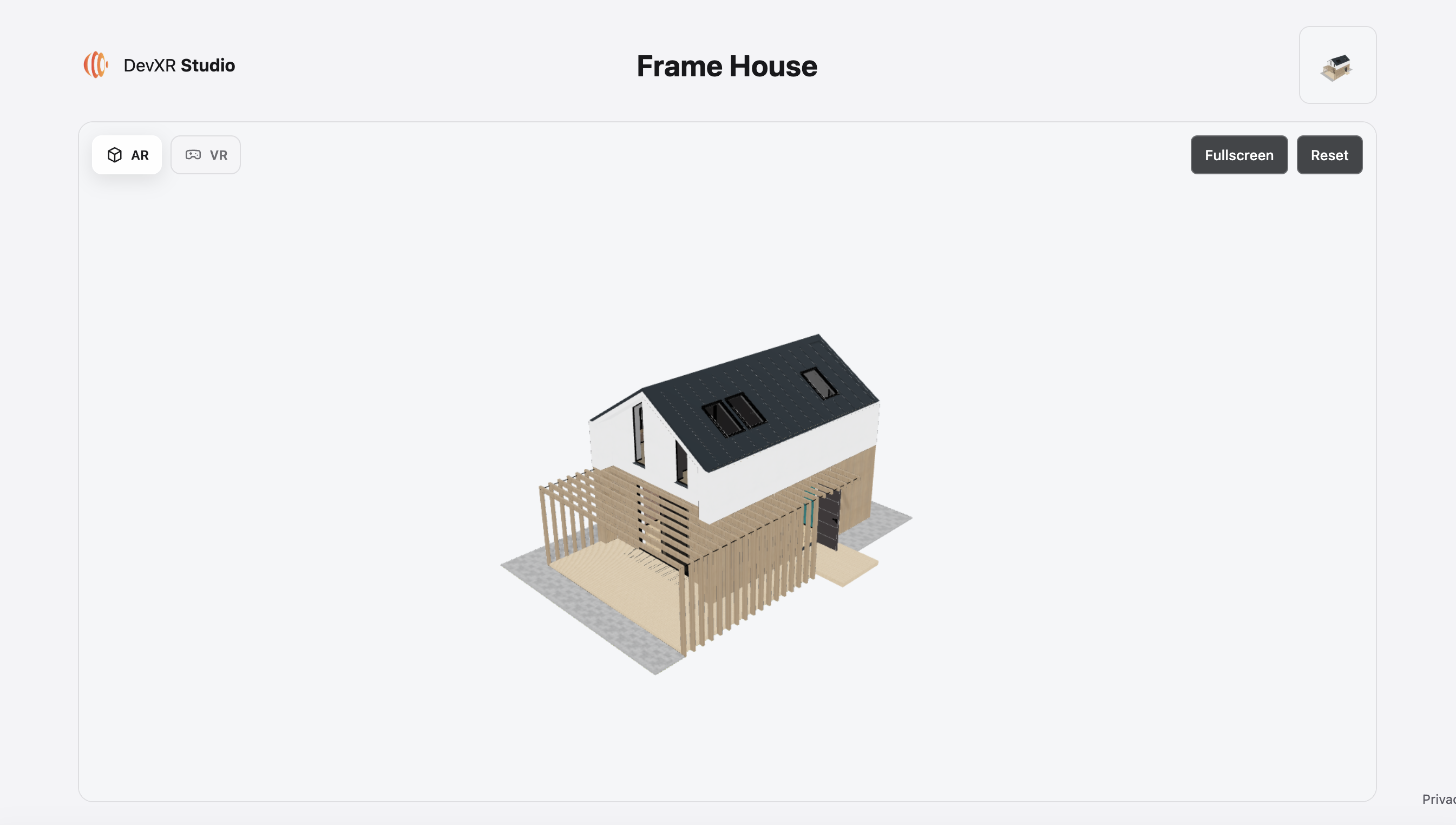
An AR viewer is a viewing experience that lets people see a 3D model in the surroundings captured by a compatible device. From your website, visitors first explore the object in 3D, then open the augmented reality mode offered by their phone.
The 3D viewer lets visitors rotate around the model, zoom in and examine its shape on a web page. AR uses the phone’s capabilities to show the object in its surroundings. Photos remain useful for details, materials and specific situations you want to show.
With DevXR, you prepare the presentation in Studio, publish the model, then share its URL or embed the viewer on your website. The transition to AR depends on the device and browser; visitors retain access to web 3D when their device supports it.
One model, three ways to help people picture it
E-commerce & brands
Show the product’s shape and volume
Furniture, a decorative object or equipment: add a 3D view to your product page so visitors can examine its shape. Then offer mobile AR to see it in real surroundings.
What to prepare: verified dimensions, supporting photos and a visible access button near the product.
Agencies & integrators
Deliver a simple way to access the model
Connect a published model to a client page, landing page or catalog. Start with a link for quick setup, then use an iframe if the website accepts this content.
What to prepare: responsive embedding, a fallback link and testing on the target phones.
Architecture & design
Present a proposal remotely
Share a mockup or furnishing without requiring your audience to use design software. 3D makes it easier to examine volumes, while AR provides another presentation context.
What to prepare: consistent scale and a lightweight scene. This visualization does not replace professional measurements.
Create your 3D and AR experience with DevXR Studio
Import your GLB model
Sign in to Studio, open your project and import your web-ready model. Wait for processing to finish and the model to be ready before presenting it.
Check the presentation
Check materials, orientation, proportions and scale. Adjust the viewer presentation, then save. AR rendering may differ from web rendering, so also check it on a phone.
Publish the model explicitly
In Delivery, use Publish for a ready version. Publishing requires the appropriate permissions and an account with a verified email address. A private preview is not a public link.
Get your link or iframe
In Access → Links and embed code, copy the public URL or iframe code. Test the link while signed out, then test the AR workflow on your target devices.
How do visitors open the AR viewer on a phone?
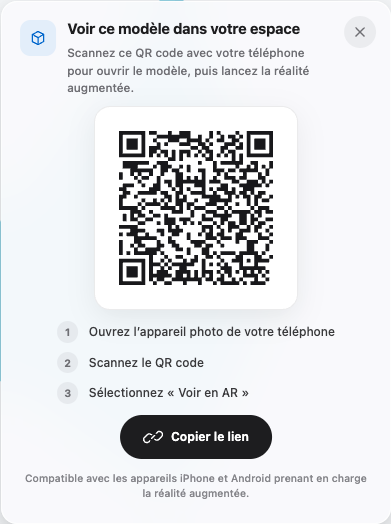
From a desktop: use the QR code
- Open the published model page and wait for it to load.
- Click the AR control in the viewer to display the phone transfer panel.
- Scan the QR code with the phone’s camera, then open the link.
- On the compatible phone, tap the AR control to launch the available mode.
From a phone: open the link directly
- Open the public link in the phone’s browser.
- Wait for the 3D model to appear.
- Tap AR when the control is available. On iOS, a preparation step may precede Quick Look.
- Grant the requested permissions if you wish to continue, then view the model. Return to the page to continue exploring in 3D.
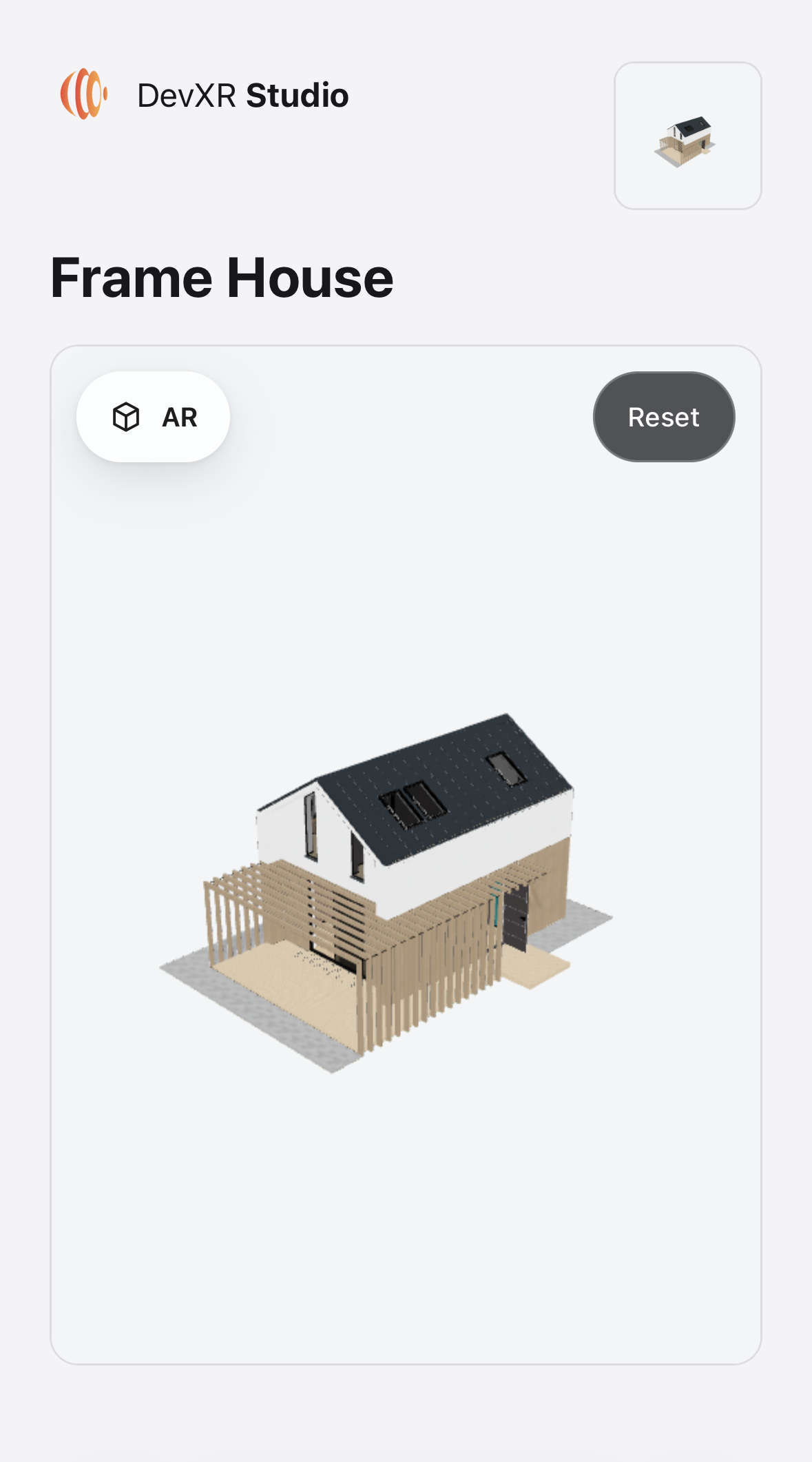
Open this demo on a compatible phone to try the workflow available on your device.
AR viewer on iOS, Android and desktop: what changes?
| Device | AR workflow | What to check |
|---|---|---|
| Compatible iPhone and iPad | AR Quick Look, prepared from the GLB model. | Open in Safari, wait for preparation and start AR with an explicit gesture. |
| Compatible Android | An augmented reality WebXR session. | A WebXR browser, an ARCore-supported device, available AR services and granted permissions. |
| Desktop | 3D viewing and a QR code to continue on a phone. | A published model, a compatible phone and access to the public link. |
| Device without AR | Web 3D viewing if WebGL is available. | Provide photos, a description and essential information alongside the viewer. |
The WebXR workflow requires a secure HTTPS page and browser permissions. Browsers embedded in messaging or social apps may limit AR features: open the link in Safari or a compatible Android browser.
Controls and placement vary by platform. The current Android workflow presents the model in front of the user; do not assume automatic floor detection or the same placement gestures as in Quick Look.
Add a 3D and AR viewer to your website
Start with a link
Add a button linking to the model’s public URL, such as “View the product in 3D and AR”. Visitors arrive on a dedicated page. This also works for messages, printed QR codes or a CMS that does not accept iframes.
An iframe in your product page
Copy the code generated by Studio into an HTML block that allows external content. The viewer appears within your page; switching to AR still depends on device capabilities and the host page’s permissions.
<iframe
  src="https://viewer.devxr.fr/embed/pub_VZivihNIlDZNQPAdbGg7BPEx3x9FQ1X4"
  title="3D presentation — Frame House"
  width="100%"
  height="480"
  loading="lazy"
  allow="fullscreen; xr-spatial-tracking"
  allowfullscreen
  referrerpolicy="strict-origin-when-cross-origin"
  style="border: 0;"
></iframe>This example uses the demo model. For your own model, copy the code generated in Studio.
Keep the xr-spatial-tracking permission and fullscreen in the provided code. Host site policies can also limit these features. Provide a link to the public page and test everything on the final domain with its security settings.
On WordPress, Shopify or WooCommerce, check what your theme, block and editor account allow. A gallery designed only for photos needs adapting to accept an iframe. Reserve its height to prevent layout shifts and load the 3D view on demand if it sits in a gallery.
Follow the full embedding guide: link, iframe and gallery · Check allowed domains and iframe requirements
AR quality starts with the 3D file
- Units and scale: check a known dimension in your creation tool and verify the result on a phone.
- Orientation: check the model’s orientation, origin and transforms before exporting.
- Textures and materials: check that they are included in the GLB and inspect their appearance in both workflows. Web and native renderers may differ.
- File size: simplify geometry and match textures to the details that matter. A product-page object does not necessarily need the full precision of the design file.
- Scene: remove elements that are not needed for the presentation and keep the subject easy to understand on a mobile screen.
- Testing: test your actual file on iOS and Android over a representative mobile connection before sharing the page.
Keep dimensions, specifications and purchase information as text on your product page. The viewer enriches the presentation without being the only source of information needed to make a decision.
Is the AR button missing, or does the experience fail to start?
The AR control does not appear
Check the device, browser, viewer AR configuration and availability of AR services. On desktop, use the phone transfer panel. A small screen alone does not mean that AR is supported.
Quick Look stays in preparation
Wait for the model to load and prepare. Check your connection, try again in Safari and test a lighter GLB to isolate a file-related issue.
AR works through a link, but not within the website
Compare the public page and iframe on the same phone. Check HTTPS, iframe permissions and the host site’s policy. Keep the public link accessible without globally disabling protections.
The model looks too large or different
Check the GLB’s scale, units and materials. Compare the web viewer with rendering on a real device. Do not validate a dimension from a screenshot alone.
The QR code does not open the model
Test the public URL while signed out and check that the model is still published. A QR code opens a link; it does not make a private model accessible or add AR to an incompatible phone.
The link opens inside a social app
Copy it and open it in a compatible browser. If you decline a required permission, you can return to 3D viewing and review the browser’s permissions.
Frequently asked questions about AR viewers for websites
Do visitors need to install an app to view the model in AR?
No DevXR app needs to be installed for this workflow. iPhone and iPad use Quick Look. Android uses a WebXR-compatible browser and the required system AR services, which must be available and enabled.
Are all iPhones and Android phones compatible?
No. Availability depends on the device model, operating system, browser and permissions. On a device without compatible AR, visitors can explore the model in the web 3D viewer if WebGL is available.
Which file should I use to create my AR viewer?
Prepare a web-ready GLB model with its materials and textures. DevXR prepares the Quick Look experience from this model on iOS. Check quality, dimensions and behavior on your target devices before sharing the link.
Do visitors need a DevXR account?
A published model with public access can be viewed without an account. Creating, configuring and publishing the model requires your Studio account, the necessary permissions and a verified email address.
Can I add an AR viewer to WordPress, Shopify or WooCommerce?
You can use a link to the model page or a block that accepts the iframe provided by Studio. Embedding depends on editing permissions, your theme and site policies. Test the workflow on the final page; an image block alone is not enough.
Are model dimensions guaranteed in augmented reality?
Check your file’s units and scale, then verify a known reference on a real device. AR helps communicate proportions; it does not replace technical measurements or installation checks.
Can I keep my model private?
Yes, models are private by default. The sharing workflow described here requires explicit publication. A public link can be forwarded. Unpublishing removes public access but does not delete screenshots or copies already made.
Does adding an AR viewer increase sales or search rankings?
AR can help visitors examine what you offer. Its impact depends on the product, model quality and user journey. Measure results on your own website; no increase in conversions, traffic or rankings can be guaranteed.
Your next product, in context
Start with a model. Share a new perspective.
Import your GLB, prepare its presentation and test the AR workflow on your target phones before adding it to your website.
Create my DevXR account ↗Discuss my integration